Posts categorized: Admin

Official Resources for the Gutenberg Block Editor
Just a quick post to share some recommended useful resources for anyone working with the new Gutenberg Block Editor. Our book Digging Into WordPress now links to this post, so readers can learn more and dive deep into Gutenberg. Or just bookmark for future reference. What does that mean? It means that this page will be updated with any new useful and official resources. And by “official” just means the information is sourced/hosted at WordPress.org.

New Poll: How Do You Use the WordPress Media Library?
On its own, the WordPress Media Library provides users with a wide variety of great tools for managing media content. The Media Library makes it easy to upload media content such as images and video into an chronologically organized directory structure. During the upload process, WordPress automatically generates thumbnail, medium-size, and large-size versions of images. From there, users may associate individual media items with posts and create galleries of attached content.

Measuring Latency with Apache Bench
One of the important factors in the speed of your site is the distance between your servers and the browser visiting your site. The time it takes the information to travel from the server to the browser is called latency. Latency increases with distance, so no matter how fast your servers may be, high latency can make your site load slowly for visitors who are geographically removed from your servers.
Mastering WordPress Post-Revisioning and Auto-Save Features
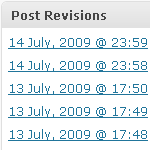
Not everyone loves the post-revisioning feature of WordPress. In fact, some people can’t stand it. On the one hand, it’s nice to have a library of post-draft revisions to drudge through if you should ever make a mistake. On the other hand, multiple copies of every post is a great way to bloat your database with otherwise useless information.
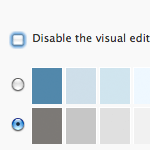
Leave the Visual Editor ON
Just a quick reminder to anyone out there that may not know.. Enabling the Visual Editor in your User Profile settings gets you access to both Visual and HTML editors in the Write/Edit Post screen. Just click on either tab above the toolbar to toggle between modes. So you can write your posts in HTML and then jump into the Visual Editor to take advantage of the new Linking tool, which makes adding links incredibly easy. Read on to learn more about linking with the WordPress Visual Editor..
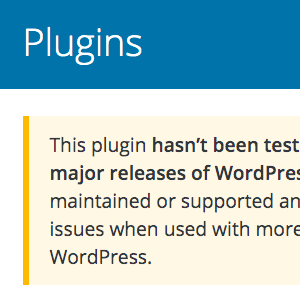
Is it okay to use plugins that are not current with latest version of WordPress?
People often ask me whether it is safe to run plugins that are not tested with the latest version of WordPress. And it’s a good question, because software in general is something that you want to keep current and updated with all the latest. For WordPress plugins however, there are many plugins that simply don’t need to be updated with each new version of WordPress.
How to Troubleshoot WordPress, Easy Step-by-Step Guide
Easily hands down the most common thing that I find myself explaining to WordPress users is how to troubleshoot WordPress in order to find the cause of some issue. And it makes sense if you think about it. WordPress and all of its plugins and themes are made of code. And code is a complex thing. The more code you add to a site, the more likely it is for bugs and issues to happen. And when they do, it can be confusing and frustrating to the average user.

How to Selectively Enable Gutenberg Block Editor
Previously, we covered numerous techniques to disable Gutenberg. For example, you can disable Gutenberg on specific post types, user roles, post IDs, and so forth. But what about doing the opposite and conditionally enabling Gutenberg? For example, if Gutenberg is disabled by default, you could then selectively enable it on whichever post types, user roles, or whatever criteria that’s required. So this tutorial explains how to enable Gutenberg using simple WordPress filter hooks. You’ll learn how to enable Gutenberg for any single posts, new posts, post meta, categories, tags, and post types. Plus some juicy tips and tricks along the way!
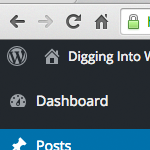
How to Remove Items from the WordPress Toolbar
The WordPress Toolbar makes it easy for plugin and theme developers to add links and other items. This is great news if you find the added links useful; otherwise, the additional links may be more of a nuisance, cluttering up your current workflow. For example, the database-backup plugin UpdraftPlus adds an “UpdraftPlus” link. Some users probably think this is awesome, but for my own sites it’s just not necessary, and is something I would like to remove. So for this DigWP tutorial, we’ll use the UpdraftPlus Toolbar link to demonstrate how to remove unwanted items from the WordPress Toolbar in general.

How to Prevent Changes to Plugins, Themes, and WordPress Core Files
This is a common question I get from folks in the WordPress community. How can I “lock things down” and prevent any changes to plugins, themes, and WordPress core files. For example, how to prevent any themes and/or plugins from being updated or deleted, and how to prevent any new plugins from being installed. This is useful for certain projects where it’s necessary to lock a website to a static version. Fortunately, WordPress makes this super easy with a couple of PHP constants. Let’s take a quick look..

How to Disable Gutenberg: Complete Guide
Gutenberg soon will be added to the WordPress core. This is great news for some, not so great for others. With 99.9999% (estimate) of all WordPress sites currently setup to work without Gutenberg, the massive changes barreling down the pike are going to affect literally millions of websites. And as swell as the whole “Gutenberg” experience may seem, the simple truth is that a vast majority of site owners will not be prepared when it finally hits. Nor will many small business have time or budget to test and update client sites to accommodate ol’ Gut’.
How to Disable Embeds for Any Specific URLs
Quick tip: how to disable embeds for any URL(s). The other day I was adding URLs to a draft post in WordPress. Some of the URLs were for Twitter tweets. Checking a preview of the post on the front end, I was surprised that WordPress had automatically embedded the actual tweet in place of the URL. After a few minutes searching for a way to disable the automatic embedded tweet, I remembered about WordPress oEmbed (now referred to as Embeds), which I’ve actually written about in several tutorials. Turns out the solution is dead simple.

How to Disable All Automatic Updates (WordPress Core, Plugins, and Themes)
Everyone has their own preference when it comes to automatic updates. Many folks like the idea of saving time and not having to “do” anything when updates are available. The problem is that updates don’t always go as planned. Unexpected things happen, conflicts, bugs, etc. Best-case scenario you save some time. Worst-case scenario your site goes down. Personally, I prefer to disable automatic updates for all the things: WordPress core, plugins, and themes. To do it, I use the following code snippets..

How to Add Custom Code to WordPress
There are many books and tutorials that share useful code snippets for WordPress. For example, you can find hundreds of custom functions right here at DigWP.com. You can also find them in my WordPress books, tutorials, and code snippets. For many code snippets and custom functions, the usage instructions will say something like: